Stop Alt-Tabbing: 5 OBS Chores the Command Center Handles
— Breaker Labs
These shortcuts use the current desktop Command Center layout. Connect OBS first; the Direct Sync setup guide walks through the connection. For a full tour, read How to use the new Command Center.
1. Reload the selected source
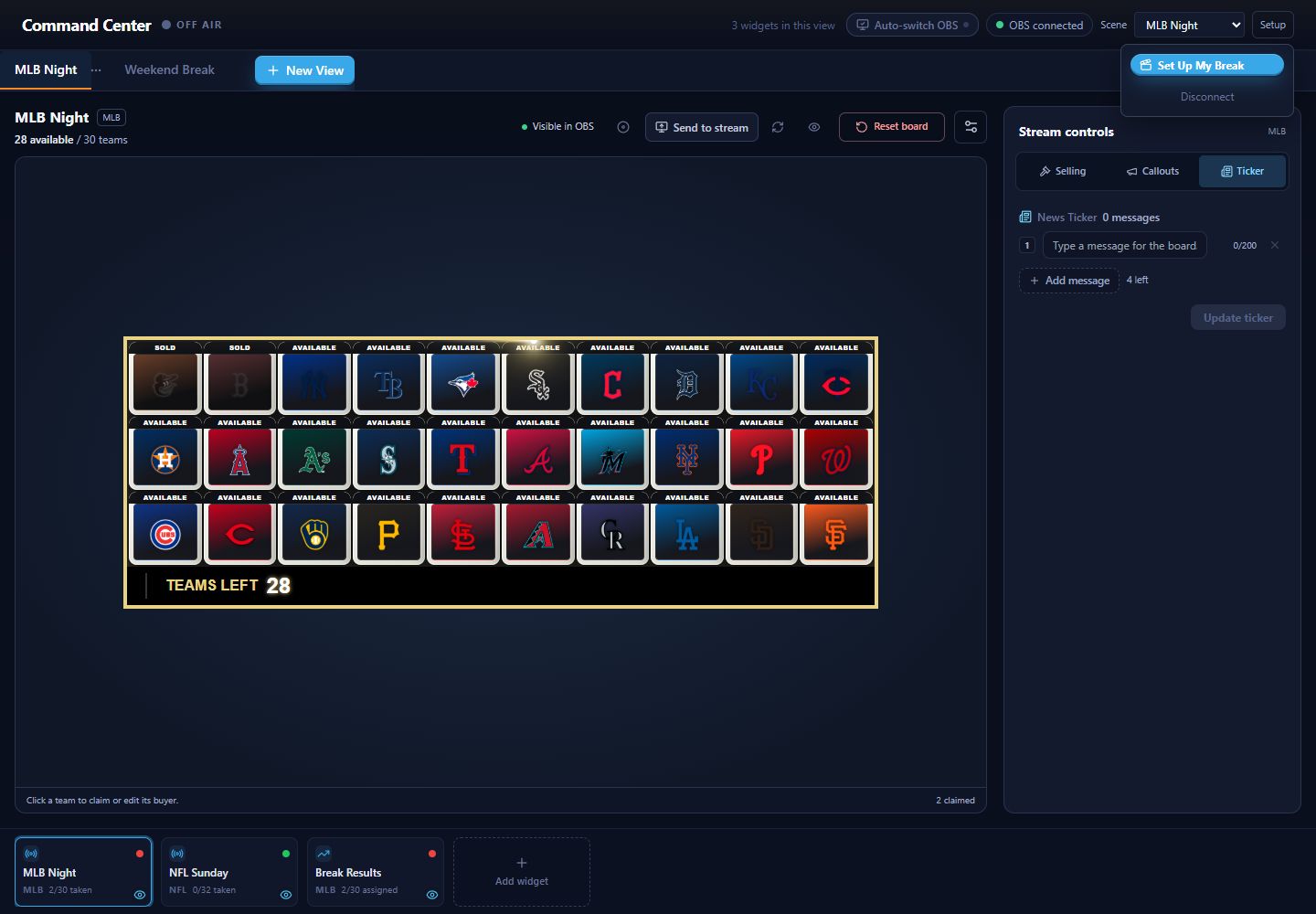
Select a widget in the bottom strip, then use the reload icon beside its board. Its accessible label is Reload in OBS. This refreshes that widget’s Browser Source. Check any error message if OBS cannot complete the action.
2. Show or hide overlays independently
Use the eye beside the board or on a widget tile. The board’s Visible in OBS / Hidden in OBS label reports the selected source’s visibility. Leave Auto-switch OBS off when you want to show multiple overlays independently. Hiding a source preserves its position and settings.
3. Switch scenes
Choose the desired scene from Scene in the connected desktop header. This changes the OBS scene; selecting a Command Center view alone does not. Check OBS before making a scene change during a live broadcast.
4. Build a scene from your view
Open Setup → Set Up My Break. It creates or reuses a scene named after the view, adds its saved widgets, and switches OBS to the scene. Arrange sources in OBS after the first setup. See the Set Up My Break guide.
5. Switch the displayed widget
Use Send to stream beside the board to show the selected widget and hide the other distinct sources in your view. It appears when the connected view has more than one distinct OBS input and the required plan access.
For automatic switching, enable Auto-switch OBS. Turning it on immediately sends the current selection; subsequent widget selections also switch source visibility. Turn it off before selecting widgets that you want to operate without automatically changing what viewers see.